
- Getting Started
- WuPlay Setup Guide
Getting Started
WuPlay Setup Guide
Complete guide for configuring and using Core Builds templates with WuPlay media player
WuPlay is a Stremio-compatible streaming client that works with Stremio add-ons, including AIOStreams and Core Builds.
It is intended for Android TV, Google TV, Fire Stick, and Chromecast-style lean-back viewing. WuPlay supports Chromecast casting, Trakt integration, configurable layouts, built-in genre browsing, and binge groups.
Quick import
Already have an AIOStreams configuration? Add the same manifest to WuPlay in four steps.
1. Copy your AIOStreams manifest URL
Open your AIOStreams instance and copy the manifest URL shown on the configuration page.
Keep it private. A manifest URL can contain account-specific information. Never post or share a full manifest URL publicly.
2. Find your WuPlay Profile Key
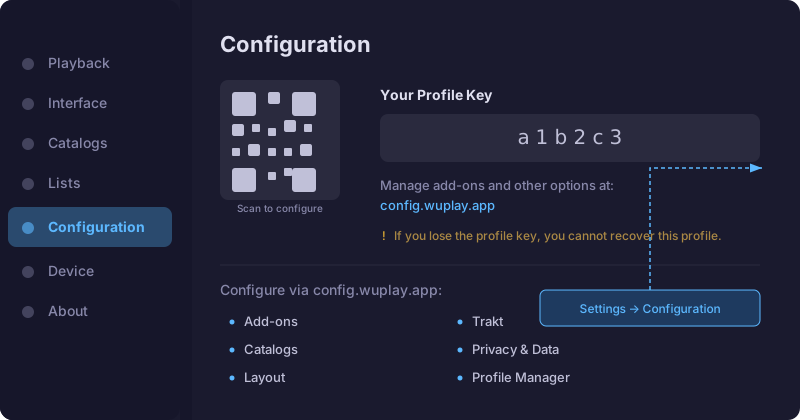
In WuPlay, open Settings → Configuration. Your Profile Key appears at the top of the screen.
3. Open the WuPlay configurator
Scan the QR code on WuPlay’s Configuration screen to open the configurator pre-linked to your device. Alternatively, open config.wuplay.app/configure and enter your Profile Key.
4. Add the manifest as an add-on
In the WuPlay configurator, open Add-ons, paste your AIOStreams manifest URL, and save. The add-on syncs to WuPlay automatically.
Full setup
1. Install WuPlay
Use the current installation instructions from WuPlay releases. The official Core Builds guide currently lists downloader code 5781040 for compatible TV devices; check the WuPlay release source for the latest installation options.
2. Choose a Core Builds template
Open the Template Directory and select a template that matches your device and service.
Not sure which one to choose? Start with Which Template?.
3. Configure AIOStreams
Import the selected template into an AIOStreams host, enable the services you actually use, enter only the required credentials, and save the configuration.
A TMDB token is optional. Do not share service keys, AIOStreams passwords, or manifest URLs.
4. Add the saved manifest to WuPlay
Return to Settings → Configuration in WuPlay, use the Profile Key or QR flow to open the WuPlay configurator, then add your private AIOStreams manifest under Add-ons.
5. Start streaming
Return to WuPlay, choose a movie or show, and select a stream. The same AIOStreams manifest can be used with compatible Stremio clients, including Stremio, WuPlay, and Nuvio. Changes made in AIOStreams apply to each client using that manifest.
WuPlay and Stremio
| WuPlay | Stremio | |
|---|---|---|
| Best for | TV devices, casting, lean-back viewing | Desktop, mobile, full library management |
| Configuration | config.wuplay.app + Profile Key | In-app settings |
| Chromecast | Built-in cast support | Not natively supported |
| Genre browsing | Built-in genres screen | Add-on dependent |
| Trakt | Built-in integration | Via add-on |
| Binge mode | Binge groups with auto-play | Manual next episode |
Troubleshooting
- No streams appearing — confirm that your manifest URL is correct and the selected service is configured in AIOStreams.
- Add-on is not syncing — confirm the WuPlay Profile Key in config.wuplay.app.
- Cast is not working — make sure the Chromecast and WuPlay device are on the same Wi-Fi network.
- Streams buffer or stall — try a Speed or Flash template where appropriate for faster cached results.
- FLAC audio issues — check the current WuPlay release notes; the official Core Builds guide notes FLAC transcoding support in WuPlay v0.7.3+.
- No compatible streams on resume — update WuPlay and check the current release notes.
Official WuPlay links
For more Core Builds help, see Troubleshooting and FAQ.